The financial watchdog has put social media finance influencers on notice, with the ASIC financial influencer crackdown threatening up to five years’ jail and $1 million-plus fines for ‘finfluencers’ giving out financial advice without a licence.
The relationship between social media influencers and the products and services they spruik is often murky, with a push across the board for them to declare payments and other potential conflicts of interest. Now the spotlight has turned to influencers, investment gurus and ‘wealth gurus’ who provide stock tips and other financial advice on platforms like Instagram, TikTok and YouTube – often while flaunting lavish lifestyles.
The Australian Securities and Investments Commission’s 2021 ‘Young people and money’ survey found that 33 per cent of 18 to 21-year-olds follow at least one financial influencer on social media. It also found that 64 per cent of young Australians changed at least one of their financial behaviours as a result of following a financial influencer.
“The way investors access information is changing,” says ASIC Commissioner Cathie Armour. “It is crucial that influencers who discuss financial products and services online comply with the financial services laws.”
“If they don’t, they risk substantial penalties and put investors at risk.”
Targeting unlicensed financial advice
Following on from the damning findings from the Royal Commission into Misconduct in the Banking, Superannuation and Financial Services Industry, ASIC has turned its attention to online influencers. The ASIC financial influencer crackdown extends far beyond simply targeting Ponzi schemes, pump and dump scams and other illegal practices.
ASIC is already suing one finfluencer in the federal court, accusing him of operating a financial services business without a licence.
Like other financial advisors, financial influencers require a licence if they are giving out financial advice or indicating that an investment can’t lose – even if they’re not being paid behind-the-scenes to provide that advice.
Even if they are not offering advice, Finfluencers also require a licence if they are making money through affiliate marketing links to online brokers. Simply stating “this is not financial advice” is not enough to protect them.
The crackdown is primarily targeted at stock traders, with crypto remaining a grey area. While cryptocurrencies themselves do not fit within Australia’s current legal definitions of a ‘financial product’, some crypto-assets and Initial Coin Offerings (ICOs) can be classified as financial products based on their inherent characteristics or structure.
The ASIC finfluencer crackdown follows restrictions introduced by Australia’s Therapeutic Goods Administration in January to crack down on influencers paid to promote health products online.
Some people will do anything to get attention on the internet. This was perfectly demonstrated when a Tesla Model S driver attempted to pull an ‘Elon Musk’ by launching his car, with passengers, into space.
According to the Los Angeles Police Department, on March 20th, the driver, who has still yet to be identified, rented a 2018 Tesla model S and was performing a variety of stunts around the city. Some were captured and shared on the internet, however, his final stunt culminated in launching the car into the air along a quiet suburban street. The Tesla’s incredible acceleration enabled it to rocket up the steep hill before literally lifting off to what seemed like 6 or 7 metres in the air, losing control, taking out a family of trash bins and a few parked cars before coming to a halt at the back of a Subaru.
Captured by YouTuber Alex Choi – jump to 1:50 to see the jump footage
According to YouTuber Alex Choi, the driver and his friends were also at a Tesla car meet up earlier that night. The driver told the group that he was planning to jump his Tesla at the Baxter and Alvarado Street hill, which is renowned for its steep apex. There were no practice runs or planning before the stunt. The driver just lined the car up and went for it. There were four people in the car during the stunt, along with a stray cat. Apparently the driver found the cat earlier that evening, bought it some food and took it with him.
Takeoff captured by Alex Choi’s dash cam on left, gravity takes over on right
Thankfully, no one was injured, including the cat, and the driver and passengers fled from the scene, abandoning the car later on. Whereabouts of all on board are unknown.
The LAPD is offering a $1,000 reward for any information that could lead to the driver’s arrest. Given there were quite a few witnesses, it’s possible that they will track the culprit down soon.
This example perfectly illustrates the length some people will go to get attention on the internet. In this case, the driver and passengers were incredibly lucky that they didn’t kill themselves or anyone in the vicinity. It should go without saying, please do not try this at home, in your car, anywhere, ever. It’s tremendously irresponsible, dangerous and stupid, not to mention illegal.
A $750 million NBN regional upgrade promises to boost broadband speeds and coverage across Australia, as part of next week’s budget in the run up to the Federal election.
The Morrision government has pledged $480 million to extend the range of the NBN’s fixed wireless from towers by up to 50 per cent. Another $270 million is coming from NBN Co’s own coffers.
Using a mix of 4G and 5G technology, the boost will allow 120,000 additional premises to move to fixed wireless rather than relying on the slower Sky Muster satellite service. After the upgrade, every home which connects to NBN fixed wireless should have access to 100 megabit-per-second download speeds, with 250 megabits available to 85 per cent of properties.
The NBN regional upgrade will take around two and a half years to complete, according to Gavin Williams – NBN Co chief development officer, regional and remote.
The changes will also benefit Sky Muster users by freeing up satellite capacity. As a result, NBN will lift monthly Sky Muster data caps by an average of 55 gigabytes in the first two years, then 90 gigabytes once the fixed wireless upgrade is complete.
NBN further extends fibre network
Meanwhile, as of today, more than 50,000 Fibre to the Node (FTTN) premises are eligible to upgrade to Fibre to the Premises (FTTP). This will rise to 230,000 eligible premises by mid-year and approximately 600,000 premises by the end of the year.
Plans based on the nbn Home Ultrafast speed tier, offering peak download speeds of 500 Mbps to almost 1 Gbps, are already available to 4.4 million premises via Hybrid Fibre Coaxial (HFC) and FTTP networks. By the end of 2023, up to eight million premises across Australia will be eligible to access Home Ultrafast plans.
To receive a full fibre upgrade, eligible customers need to place an order with a participating retailer for a 100 Mbps Home Fast, 250 Mbps Home Superfast or 1 Gbps Home Ultrafast plan.
Last year, Labor promised to spend $2.4 billion on NBN upgrades should it win government. It said this would give an extra 1.5 million households and small businesses access to full fibre, with gigabit speeds for 90 per cent of fixed-line users by 2025.
Android fans have had it rough when it comes to tablets. Apple’s iPads have all but taken over the market on the heels of years neglect by Google and most app developers.
However, with pandemic-led demand fuelling the segment to a five year high, tablets are seeing renewed interest by Android manufacturers, culminating in the release of the Tab S8 lineup by Samsung.
There are three different screen sizes to choose from ranging from 11 to a monstrous 14.6 inches. And with the fastest mobile processors from Qualcomm, the Tab S8 lineup is taking aim squarely at Apple’s iPad Pro with prices to match.
After spending two weeks with the 12.4-inch S8+, it’s clear that Samsung isn’t messing around.
Impressively thin and light
If you’ve used a Tab S7, the S8+ will feel familiar. It’s thinner and lighter than a 12.9-inch iPad Pro and the bezels are narrow all the way around. There’s no camera notch either, offering just enough room to comfortably hold the tablet without touching the screen. The back of the Tab S8+ has dual rear-facing cameras and a magnetic strip to hold the S Pen, which is included in the box.
The Tab S8+ has a quad speaker arrangement. This sounds better than most laptops with audio that is nice and loud, without any distortion, although they don’t sound quite as full as the 12.9-inch iPad Pro. The position of the power button is still too close to the volume buttons and I often found myself pressing the power button by mistake.
There’s no headphone jack, which is a bizarre omission when you consider that most ‘pro’ tablets have one. You do, however, get a microSD card slot to store not just files but most apps as well. This means you can save some cash and spring for the base 128GB model and throw in a 1TB microSD card to expand the internal storage later.
In terms of biometrics, you have a speedy but less secure 2D-based face unlock system and an in-screen fingerprint scanner – both of which worked well in testing.
The Tab S8+ supports fast charging at up to 45 watts but sadly there’s no charging brick included in the box.
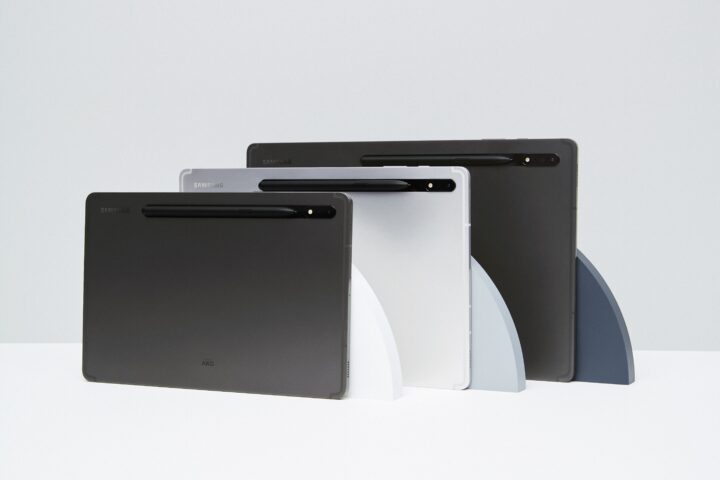
The Tab S8 lineup consists of three sizes – the 11″ Tab S8, 12.4″ Tab S8+ and the huge 14.6″ S8 Ultra
Difficult screen shape
The 12.4-inch OLED display boasts a razor sharp resolution of 1848 x 2960 and refreshes at a buttery smooth 120Hz. It’s worth noting that the refresh rate isn’t adaptive, so setting it to 120Hz means it will always run at that refresh rate regardless of the content on screen resulting in a greater hit to the battery (more on that later).
It’s also a very glossy screen, picking up reflections and glare very easily, which can make outdoor use during the day challenging.
While it isn’t anywhere near as bright as the OLED panels found on Samsung’s smartphones or the mini-LED panel found on the 12.9-inch iPad Pro, the inky blacks and infinite contrast makes watching content a pleasure.
Similarly, streaming the latest AAA games from cloud services like Xbox GamePass looked great on the large 12.4-inch display.
My main issue with theTab S8+ is that the 16:10 aspect ratio isn’t a great shape since Android apps tend to prefer vertical space versus horizontal space. This means that apps are flanked by wasted empty space on the sides, with not enough vertical information. The net result is you end up scrolling a lot. Similarly, stacking apps side by side in a split screen configuration feels too cramped. Having a taller 4:3 or 3:2 display such as the ones found on the iPad Pro and Surface Pro would’ve made the display a lot more usable.
One benefit of using a narrower display is that holding the device like a regular tablet in portrait mode is more comfortable. Coupled with the unit’s light weight, this makes it easy for quick two thumb typing.
Split screen multitasking feels far too cramped on the Tab S8+ 16:10 display
The best inking experience
Together with Wacom, Samsung has been refining the S Pen experience ever since it introduced the original Galaxy Note all the way back in 2011. Samsung is so confident in the S Pen’s utility that the company now includes it with its flagship Galaxy S22 Ultra and Tab slates.
The decade plus worth of optimisation shows both on the software and hardware front with a level of features, functionality and customisation that simply blows away the competition.
The stylus included with the Tab S8+ is the S Pen Pro which drops the latency down to just 2.8ms. This is the same as system used in the Galaxy Z Fold 3 and S22 Ultra. The result is that, unless you’re drawing a straight line really fast across the screen, you won’t see a gap as the line tries to catch up with the pen tip.
However, it’s worth noting that the reduced latency only applies to selected apps such as Samsung Notes. Most of the drawing apps including Medibang Pro, Clips Studio and Concepts have yet to be updated to take advantage of the reduced latency offered by the S Pen.
My Tab S8+ review unit was missing the included S Pen, but I was able to use the S22 Ultra’s smaller S Pen on the tablet just fine. I have also been using the S Pen ‘Fold Edition’ from my Galaxy Z Fold 3, which is closer in size to the S Pen that comes included with the Tab S8+, and the performance felt identical.
The ultra responsiveness of the S Pen coupled with the soft rubber tip makes it feel closer to writing on paper than the hard tip of the Apple Pencil and Microsoft’s Surface Pen. The S Pen will even give you audible pen to paper feedback as you write and draw. Whether it’s the ability to write a quick note while the screen is off or unlocking the screen with your S Pen, you can pretty much do everything without ever laying a finger on the screen. Mercifully, the S Pen now supports writing directly in text fields without bringing up the on-screen keyboard first.
Even if you’re not a habitual note taker or a budding artist, Samsung gives you plenty of reasons to unholster the S Pen. For example, ‘air view’ essentially turns the S Pen into a mouse by displaying additional pieces of information as you hover over parts of an app or browser window. You can also use the S Pen as a remote for controlling the camera, music or PowerPoint presentations or just assign the button on the S Pen to launch whatever application you prefer.
You can even use the S Pen on your Windows machine ,thanks to Samsung’s second screen feature that extends your Windows desktop to your tablet. While the wireless connection introduces a bit more lag, I could see this being a viable alternative to a dedicated Wacom tablet for artists. Plus, it gives you access to the plethora of professional drawing and design apps on Windows that are otherwise lacking on Android.
The included S Pen smartly stows away magnetically on the back of the device
Samsung’s One UI and DeX
Similarly, Samsung’s DeX mode goes a long way in making up for Android’s shortfalls as a tablet OS. With a tap of a button, you’re greeted with a familiar desktop-like interface, complete with resizable windows, drag and drop functionality, and mouse and keyboard support. If you’re using one of Samsung’s expensive keyboard covers with the built in touchpad, then you’ll want to switch to DeX.
Meanwhile, Samsung’s powerful split-screen functionality built into OneUI makes Android on tablets surprisingly usable, but the lack of optimised apps is where the experience falls over. There have been times where I really got into the flow of using an Android tablet, split screening apps, sharing files, and marking up documents only to open an app that just works in portrait orientation.
It’s a shame because, as a tablet OS, it’s more capable than Apple’s iPadOS, particularly when it comes to sharing files, external monitor support and multitasking. It now needs Google and app developers to acknowledge that tablets are an important part of the Android ecosystem.
Samsung’s Book Cover accessory, which includes a keyboard and trackpad built-in, costs a whopping $359
Far from an endurance champ
The battery life will vary wildly depending on your use case. In my video rundown test where I streamed video at 50 percent screen brightness, the Tab S8+ clocked in a little over 9 hours. However, in regular day-to-day use where I would be multitasking between web browsing, emails, using some drawing apps and playing some games, I typically got closer to 6.30 hours. In contrast, on my 12.9-inch iPad Pro I get 10 hours of video streaming and at least 8 hours on more mixed use cases.
Great for video calls
Samsung put the front camera on its Tab S8+ on the long edge, just like a laptop, a move which started on the Tab S7. This means when it’s docked in its keyboard case, it’ll make video calls that don’t look off-centre like they do on the iPad.
Apple strangely continues to place its Facetime cameras on the shorter edge of the iPads, as if we’re all making video calls holding them upright in portrait mode like iPhones. Thank you Samsung for realising that no one in their right mind does that and positions the camera accordingly.
The 12MP front facing camera is surprisingly good for video calls, shooting at 4K and handling varying lighting conditions. It also supports auto framing where the camera will pan to keep you in the frame as you move about on a video call. It works but it isn’t as responsive or as smooth as Apple’s ‘Centre Stage’ implementation.
Around back there are 12MP wide angle and 6MP ultra wide cameras, which are nothing exceptional. In bright light, images are sufficiently sharp and colourful but the images get noisy quickly once conditions get dimmer.
GadgetGuy’s take
$1500 is a lot of money to spend on a tablet, particularly an Android one where the user interface and app library remain largely unoptimised to take full advantage of the larger screen size. Since no one in their right mind would be looking at spending that sort of money for a device to just play Netflix on, you have to factor in the additional $359 for the keyboard and trackpad cover accessory.
The combination of Samsung’s OneUI and DeX makes the Tab S8+ workable both as a tablet and in laptop mode, while the included S Pen is more sophisticated than anything you’ll find on the market.
However, at close to $2000, there are other more capable alternatives on the market such as Apple’s iPad Pro or Microsoft’s Surface Pro 8, where the taller 4:3 display alone will boost productivity and multitasking.
That said, if you’ve been waiting for a high end multipurpose Android tablet or are an artist looking for the best Pen experience, then the Tab S8+ should be at the top of your list.
Samsung Galaxy Tab S8+
The Samsung Galaxy Tab S8+ is a unique offering with a high quality OLED display and great pen experience. But its quirks and high cost mean there may be better alternatives.
Features
9
Value for money
6
Performance
8
Ease of use
8
Design
8
Positives
Thinnest and lightest tablet in its class
12.4-inch OLED display is fast and beautiful
Samsung's One UI and DeX interface makes tablet and laptop use workable
Offers the best stylus experience on a tablet yet
S Pen included in the box
4K front facing camera looks great on video calls
Negatives
Lacks a taller 4:3 or 3:2 display
Lack of tablet optimised Android apps
No headphone jack
Expensive
The keyboard cover is an essential but exorbitantly priced extra
Gamers are set to get more choice in hardware when it comes to playing their favourite titles, with Google Chromebooks set to run Valve’s Steam gaming platform.
After initially stating that Steam had already arrived on Chromebooks, which run the lightweight Chrome OS, Google now says an alpha version of the Steam client is “coming soon” to “select Chromebooks”.
Support for the alpha Steam client is initially limited to a handful of high-end Chromebook devices. At a minimum, they require an 11th-gen Intel Core i5 or i7 processor and 7 GB of RAM. Supported models include the Acer Chromebook 514, 515 and Spin 713, the ASUS Chromebook Flip CX5 and CX9, and the HP Pro c640 G2 Chromebook.
These high requirements eliminate almost all Chromebooks, particularly in Australia where Chromebook sales have focused on the low-powered education market.
Google first announced it was bringing Steam to Chrome OS in early 2020. The list of supported devices is likely to expand over time, with reports that Google has been testing Steam for Chrome OS on older 10th-gen Intel Core processors, along with AMD processors.
It is already possible to run Steam on the Crostini Linux partition on Chrome OS, where the gaming platform runs smoothly on low-end Chromebooks – suggesting that Steam support will eventually come to a much wider range of Chromebooks.
Official support for Steam on Chrome OS will also be built on Linux, meaning Chromebook users won’t have access to the full library of Steam games available to Microsoft Windows users.
When it comes to gaming, Chromebooks also support streaming games via Microsoft’s Xbox Cloud Gaming and Google Stadia, although the latter is not officially available in Australia. Chromebooks also support running Android apps, including games.
With Chromebooks set to run Valve’s Steam, Google has also announced it is bringing Google Play Games to Windows, launching as a beta in Korea, Taiwan and Hong Kong. Android apps are already available for Windows 11 PCs, but only from the Amazon Appstore.
Are smartphones powerful enough today that you could ditch your computer or laptop and rely on it as your sole computing device? This has been an idea that the industry has flirted for a while now. It’s not crazy either given that the processing power of a modest smartphone far exceeds what we used to put man on the moon.
And by ‘replacing’ your PC, we don’t mean doing everything on your phone’s screen either. Instead, you’d carry your phone with you as normal, but when you get to work, it plugs into a laptop, keyboard and mouse. Your phone essentially switches into to a desktop ‘mode,’ where it runs, say, Microsoft Office for creating documents, viewing spreadsheets, and checking emails. It would run other programs too for browsing the web, editing photos or videos, opening PDFs, playing games, videos, music and so on.
A bit of history
There have been some concerted attempts to bring the phone-as-PC world to life. You may remember Windows Continuum’s, which was a big effort and showed real promise but was ultimately let down by performance issues and confined to a dying platform – Windows Phone.
On the Android front, Motorola grabbed headlines in 2011 when it shipped its Atrix smartphone with the Webtop platform, enabling users to access an Ubuntu-based desktop when docked.
With smartphone processors becoming increasingly capable, practically every major Android smartphone maker has had a stab at the idea since.
Even Xiaomi and Huawei have MiUi Desktop and EMUI Desktop respectively, while Motorola recently got back in the game with its ‘Ready For’ feature that allows users of its Edge series of smartphones to dock to a monitor for a desktop-like experience.
However, none feel as polished as Samsung DeX, which is supported on all Galaxy flagship smartphones and tablets dating back to 2017 including the Galaxy S8 and Tab S4. After spending a week solely using DeX for work including writing this review, I walked away surprised with how much I was able to get done. For certain types of users, I could see it becoming their only computer.
Here’s how Motorola’s Ready For works to liberate you from your PC
Setup and performance
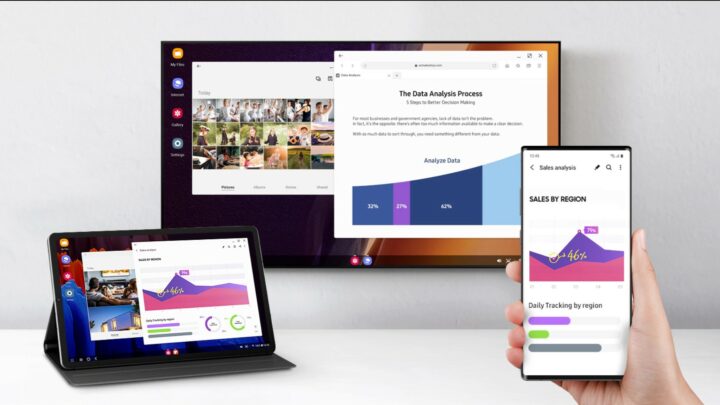
By simply plugging your Galaxy smartphone into an external monitor, you’re greeted with a familiar desktop-like interface, complete with resizable windows, drag and drop functionality and mouse and keyboard support.
I had originally dismissed DeX as a gimmick but to Samsung’s credit, the company has steadily been making a number of improvements to the platform coinciding with the release of its latest Galaxy smartphones and tablets in the S22 series and Tab S8 line respectively.
DeX no longer requires any extra accessories to get working, so long as your monitor supports USB-C or HDMI. It can even be projected wirelessly to any television that supports Miracast – perfect for presentations or streaming Netflix on a hotel TV.
The desktop user interface is clean and simple taking a few design cues from Windows and Chrome OS so that practically anyone can start using DeX without trouble. You don’t need to learn new keyboard shortcuts either, as the ones you have become accustomed to on a PC such as alt-tab for switching between applications work in DeX as well. You can even snap applications to each side of the screen like in Windows.
Performance feels equally snappy on the Galaxy Z Fold 3 and Tab S8+. Running a few benchmarks confirms there’s no performance loss when running in DeX mode so you’re ostensibly utilising all of the power your Galaxy smartphone or tablet has to offer.
In terms of input, you can use the smartphone’s screen as a touchpad too, but you’ll want to pair a Bluetooth mouse and keyboard for getting anything meaningful done.
Monitors that support display-out over USB-C usually offer a built-in USB hub for connecting peripherals, Using this, you can run a single cable to the Galaxy smartphone and keep it charged at the same time. Alternatively, you can attach a USB-C hub to the smartphone, which will give you a few extra USB ports for plugging in other accessories like external drives and SD cards.
Android has always worked well with external drives and the same is true for Samsung DeX. USB drives and SD cards work as you might expect, including the ability to move files around and format drives.
The nice thing is that your smartphone runs independently from DeX, so you can still use your handset as you normally would. It can also be a secondary display for scrolling through social media feeds or as a remote for controlling media.
Samsung DeX can can be beamed wirelessly to TVs or to a computer monitor via USB-C or HDMI
Gaming and entertainment
DeX can also function as a surprisingly decent gaming setup. By pairing any Bluetooth controller such as an Xbox or PlayStation pad, I was able to emulate older titles from classic consoles as well as play popular mobile native titles such as Call of Duty without any issue.
Streaming the latest AAA games with Xbox GamePass, which felt right at home on a big external monitor, also worked without a hitch. You’ll just need to make sure you’re connected to a home or office Wi-Fi. Otherwise streaming games from the cloud will chew through your mobile data real fast.
Streaming services like Netflix and Disney+ also worked fine on DeX but felt a bit limited due to playback being just ‘full HD’ 1080p and lack of support for HDR.
Photo and video editing apps like Adobe Premiere Rush and Lightroom also performed well and benefited greatly from the extra screen real estate afforded by the external monitor. I say ‘fairly’ as there were times when a random app would crash DeX, forcing me to reboot the device.
Previously, Samsung limited the number of apps you can run simultaneously in DeX but I never hit a wall with the Galaxy Z Fold 3 and the Tab S8+, though your mileage will vary depending on the age of your Galaxy device. It was also good to see that, despite the workload, the phone never became too hot to touch.
The other advantage is that the camera both on the front and rear of the Galaxy smartphone will work in DeX. This means you can use it as a webcam for video calls, and the quality will be better than most webcams on the market. You will need to get a bit creative on how to mount the smartphone above your monitor, however, but there are plenty of cheap aftermarket accessories available online that can help with that.
Pair a gamepad for some fun with game streaming apps like Xbox GamePass feeling right at home on a big monitor
Limitations and workarounds
DeX supports regular 16:9 and ultrawide monitors, however, resolution maxes out at 1440p. The result is an upscaled image to fill a 4K monitor, which doesn’t look great. This may look better on lower-resolution monitors that match the DeX’s native resolution. There’s also no support for multiple monitors, but that’s probably asking for a bit much.
Outside of a few select apps made by Microsoft, Adobe and Samsung, there aren’t many apps optimised for DeX. What you’re left with are blown up mobile apps with the same layout as they would be on your phone. You can force apps to run in fullscreen or resizable windows but, again, as they aren’t designed to be used that way. As a result, they don’t always scale well to a big external monitor or behave as you would expect with keyboard and mouse input.
Similarly, dragging and dropping files into different applications is also quite limited as it is up to app developers to support this feature.
You can’t run more than one instance of the same app at the same time either, so having multiple Word documents side by side isn’t possible. Chrome is fairly limited on DeX since it doesn’t support plugins like its desktop browser equivalent. As a result, your favourite ad blocker isn’t available, and it also has a habit of bumping you off to the mobile app versions of popular sites.
I found Samsung’s native ‘Internet’ browser and Opera much better to use in DeX as they support plugins and also force websites to run in desktop mode as opposed to the mobile version. This way I can easily use services like Twitter and LinkedIn as if I were using them on my PC. I could also have multiple documents open side by side in Google Docs by running them in their own browser windows, which is something I couldn’t do with the native app.
I do wish there was a better sense of continuity between Android and DeX so that if you’re in the middle of an email on a smartphone you can pick-up right where you left off on DeX. Instead you have to open the app again in DeX and dig back into your drafts to finish off the email.
That said, it’s nice not having to constantly switch back and forth between smartphone and PC throughout the day, as all of the mobile notifications, text messages and calls come through on DeX. However, with Microsoft’s YourPhone app now available on Windows machines, this is less of a selling point than it used to be.
I also love the idea of having an always connected desktop experience so I can still get work done even if I’m in a location where there’s no WiFi available.
Samsung DeX vs Motorola Ready For
Motorola’s desktop solution, Ready For, offers a lot of the same features (and limitations) as with DeX but there are a few notable exceptions. It lacks the ability to force apps to function within a resizable window, so you can only run apps at a fixed panel size or fullscreen. Ready For is also only available on three Motorola handsets – namely the Edge 20 Fusion, Edge 20 and Edge 20 Pro.
One advantage that Ready For has over Samsung DeX is that it gives you a tailored user interface depending on how you want to use the phone with an external monitor or television. For example, hitting the ‘TV experience’ will aggregate all the streaming apps, allowing you to jump back into your favourite tv show with a single click. Similarly, Ready For has a dedicated launcher for all your video chat apps, making it quick and easy to jump in and out of video calls without having to go through a desktop interface first.
Motorola’s ReadyFor feature available on the latest Edge smartphones offers a desktop mode but it isn’t as refined as Samsung DeX
GadgetGuy’s take
Overall, I was surprised with how much I could get done by simply plugging a Galaxy smartphone into a monitor or television. It won’t replace a PC for power users or for those whose needs extend beyond general productivity and web browsing. The lack of support for 4K monitors might also be a deal breaker for some.
However, if you’re the type of person that already gets most things done on their phone and doesn’t want to go down the road of investing in a full blown laptop, DeX provides a viable option. It’s also a great way to repurpose an older Galaxy smartphone or tablet that you may still have kicking around.