
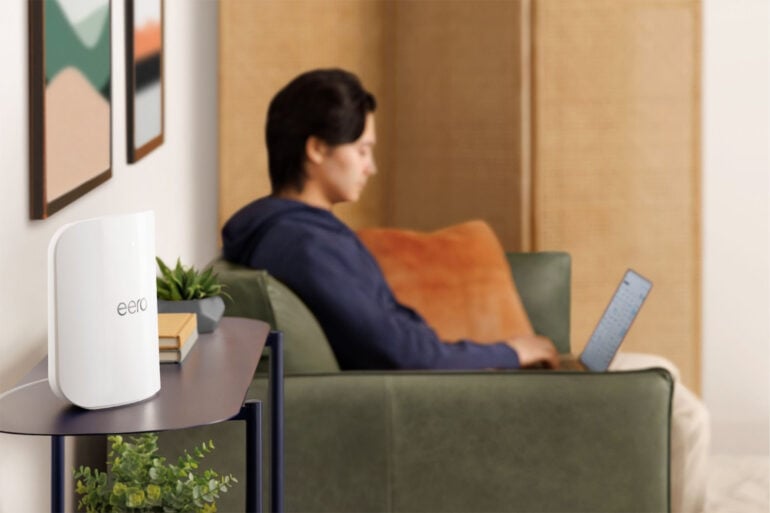
Are you the one who always has to “fix the Wi-Fi”? You know which mesh unit is “the router”. You can wrangle the app, or even a web interface, without blinking. You know whether your 2.4 GHz channel is on. You are a Wi-Fi prosumer, and your needs are specific: simple setup, fast speed, security, and smart features. eero offers all of that and more, but what makes eero mesh Wi-Fi different?
That’s not a rhetorical question. An eero mesh Wi-Fi system isn’t just a box. It’s a suite of features aimed at making Wi-Fi easy, reliable, and secure.
But as easy as eero routers are to use, they also support a range of advanced features to make the experience your own. And if you do need it, eero provides customer support and features to help you get the most out of your home network.
Let’s take a look under the hood.
Wi-Fi that “just works”
When you’re the one who always has to “fix the Wi-Fi”, it’s natural to be suspicious of plug-and-play. Back in the day, simple to set up meant a system that did things ITS WAY, and you got limited access to the settings. Now eero mesh Wi-Fi is out to give the prosumer the best of both worlds. You get set up in minutes via an app, and the same app serves you a settings page with all the knobs and switches a Wi-Fi prosumer demands.
The setup really is that short. Plug the cable from your modem or NBN box into one eero mesh Wi-Fi unit (use either port, no need to squint for a little globe icon). Then install the eero app, watch it find the unit and create the network, and then it asks you to name the SSID (Service Set Identifier, or in plain terms, the name of your Wi-Fi network, the one you see in the list when you go to connect a device) and set the password. Plug the other units in around the house, approve each one in the app as it appears, and the mesh is up.
As a Wi-Fi prosumer, you know what Ethernet backhaul is and when you need it. The eero 7 range is built for Wi-Fi 7, and the upgrades start where the plug meets the port: the eero Pro 7 has two 5 GbE ports and the eero Max 7 has two 10 GbE ports. This means you get 4.7Gbps wired throughput on the eero Pro 7, and 9.4Gbps on the eero Max 7. Both can take the fastest NBN plans on sale today, and with a wired backhaul every access point in the house starts with the full speed your internet provider is serving you (minus the usual small routing losses).

Meanwhile, the Wi-Fi is plenty fast too. The eero Pro 7 is rated at up to 3.9 Gbps over Wi-Fi 7 and about 190 square metres per unit, and the Max 7 at up to 4.3 Gbps and 230 square metres. Older Wi-Fi devices are fully compatible and will connect fine; they just don’t get the full speed. Out on the verandah there’s the eero Outdoor 7, rated by eero at up to 2.1 Gbps and covering 1,390 square metres outdoors, with an IP66 rating and an operating temperature range of -40 to 55 degrees. Okay, you might not see -40 in Australia, but that 55 means you can stop worrying about scorchers.
Then there’s the radio management, which is where a mesh lives or dies. Core tech gets named, so you know what’s doing what — TrueChannel picks the channel with the least interference, TrueRoam hands your phone not just to the nearest unit, but to the unit that will give you the best connection, and TrueMesh improves latency and speed on Wi-Fi 7 devices with Multi-Link Operation, or MLO (more on that below). Together, they’re a real Wi-Fi dead-spot killer: more coverage, the best path, the cleanest channel, and a seamless handover as you move around. All in the background, with nothing to configure.
That mesh setup phase — arrange the units, plug them into power, add them to the app, connect via Ethernet if you’re using backhaul — doesn’t require networking expertise, and that’s the whole point of the design. But as a Wi-Fi prosumer, you know what’s going on under the hood, and what it’s doing is serving your home a reliable network. Not just on day one, week one, or even year one, but as its ongoing, number one job.

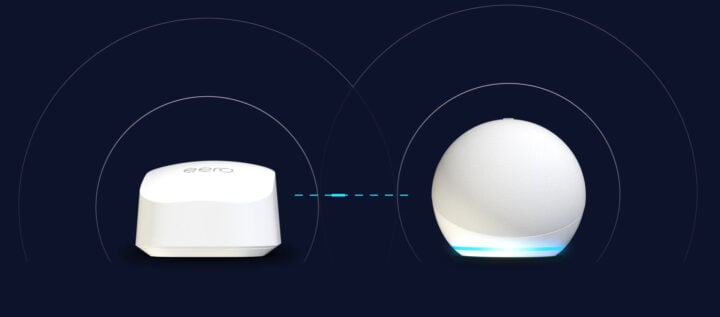
Backwards compatibility is a big thing too. You don’t have to upgrade all your eero devices at once, just add a new unit to get its benefits. Plus you can use eero Built-in features on select other Amazon hardware, like Echo devices.
The design language of the eero mesh Wi-Fi units themselves is understated and stylish. Less “stealth attack bomber” and more a neat little art object poised on a shelf. But still doing the job like something bristling with antennae.
Simple, without sacrificing depth or customisation
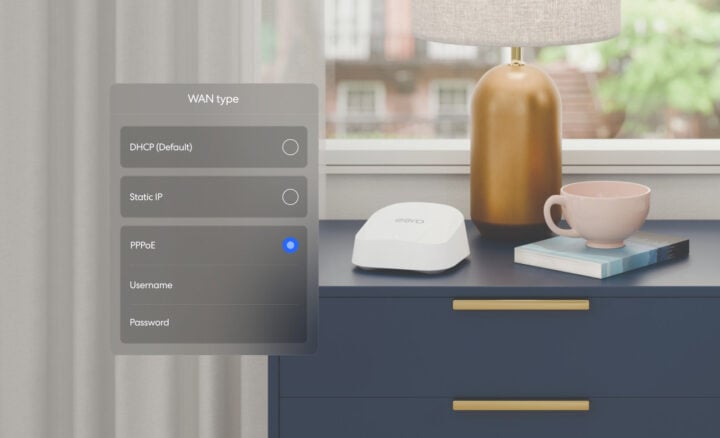
Sure, an eero mesh Wi-Fi system is simplicity itself to set up, but as we said, that doesn’t mean all the customisation and Wi-Fi prosumer features are locked away. You want the good stuff? Here’s the good stuff. You can access and configure: static IP, VLAN tagging, PPPoE, upstream IPv6, custom DNS, IP reservations and port forwarding, UPnP, Dynamic Frequency Selection, client steering, WPA3, local DNS caching, Dynamic DNS, and more. One of these, Dynamic DNS, needs eero Plus (a by-subscription service that expands the capabilities of the app, more on this below) but that’s still a comprehensive list.
And a lot of that list is about security, which is a priority for eero too. Especially constant security support, which eero delivers via free software updates – in a mesh unit context that means firmware updates too, and they usually get delivered early in the morning (think, 2-4am) so your system gets all its goodies while you slumber, and you don’t even notice it reboot after the update.
As a prosumer-worthy Wi-Fi system, eero offers multiple layers of security to protect your home network. Even without an eero Plus subscription, you get WPA3 encryption, those automatic software updates, and what eero calls “network health check”.
If you do step up to eero Plus, then you get more layers of security, as well as VPN features, and things like site blocking, ad blocking, and other things you usually need to buy a whole separate software package for.
As eero lists them, you’ll get: Active Threat Protection, Ad Blocking, Content Filters, VPN by Guardian, Malwarebytes antivirus on up to 20 devices, 1Password, and identity protection. eero Plus needs Wi-Fi 6 or later eero devices, which is every current model.
It doesn’t stop there, though. The eero Plus tier gives you data insights and more tools for the prosumer. These all get official names from eero but it’s easy to see what’s on offer: Network Insights, Activity History, Remote Network Access, Internet Backup, and plenty more.
All of that’s in the backend for you to twiddle with, but there’s important tech at work in the units themselves. These latest eero 7 units are packed with advanced features including Dynamic Path Selection and Multi-Link Operation.
Dynamic Path Selection is eero’s TrueMesh system we mentioned above. With TrueMesh Technology, the eero your device is currently connected to is already looking for the optimal path to route data around your mesh network to wherever you’re physically located. That’s why sometimes, in the eero app, you’ll see your device connected to an eero mesh Wi-Fi unit that isn’t the closest one. TrueMesh, with TrueRoam doing the handover, has worked out that, right now, even though you’re in the study, the lounge room unit is going to give you a better Wi-Fi signal than the bedroom unit down the hall.
Multi-Link Operation (MLO) enables eero mesh Wi-Fi 7 units to simultaneously send or receive data across multiple Wi-Fi frequency bands and channels, instead of having to pick one Wi-Fi band at a time. Your device has to have MLO too, but if it does, you get a stable link and speeds are maximised. If you’re currently getting 150 Mbps to your (MLO capable) phone off a router wired to a 500 Mbps NBN plan, this is a feature you’re probably going to notice right away – especially if latency is also a big problem for you, not just raw speed.
You’re supported every step of the way
Imagine. You’ve been living with eero for a few months now. And the Wi-Fi just never goes down. There is no “fix the Wi-Fi”. Or at least that’s eero’s intent, by helping to provide a fast, secure, and safe network out of the box, and throughout the life of your eero mesh Wi-Fi units.
And it’s not just clever radio tech. It’s important, human-level security too. Parental controls let you determine what’s appropriate for your family. You can set up dedicated profiles, pause device access (that means you have control of “screen time”), block specific devices, limit what can be accessed online, and create a guest Wi-Fi so visitors can scroll without you needing to hand over the main password.
With eero Plus there’s also content filtering, advanced Wi-Fi scheduling (no staying up to 0300h on the socials), and of course an activity history report.

And all of this can be managed via the app. No weird web page with teeny tiny text, just an intuitively designed app that eero proudly describes as award-winning. It puts all the tools you need to stay on top of your network, right there in the palm of your hand.
You don’t have to go it alone either. All of this is backed by world-class customer service and a three-year warranty. To help resolve any setup or Wi-Fi issues, eero encourages owners to email support@eero.com or call Australian support on 1800 029 708. You can also find written guides and explanations on the eero support site at eero.com/support.
An eero sense of calm
Simplicity, great performance, and the resources you need to make Wi-Fi easy: that’s the eero difference in a nutshell, and why eero now powers homes and businesses across more than two dozen countries. No matter how far you want to take your home network, eero has the capacity to keep up.
The post eero mesh Wi-Fi system: What makes it better? appeared first on GadgetGuy.


0 comments:
Post a Comment