
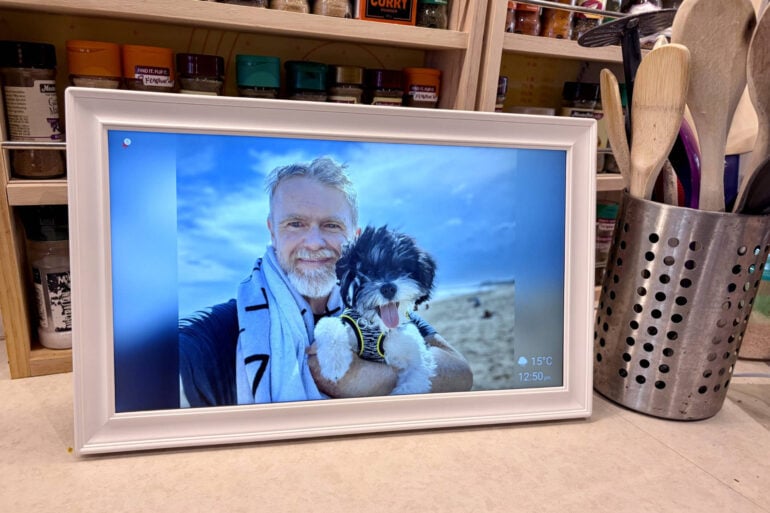
Bringing order to the chaos of busy households, the Laser Digital Calendar shows you your schedule at a glance.
As a great man once said, life moves pretty fast. It’s especially hectic if you’re constantly rushing children between class, after-school activities, weekend sport and other commitments.
Things have slowed down a bit at my house; now my children are in their 20s, but four working adults with busy social lives still make for a pretty full schedule. Complicated by the fact we’re sharing two cars between three drivers.
Long ago, we abandoned the paper calendar hanging on the kitchen wall in favour of a shared family digital calendar. Everyone can access it on their computers, smartphones and tablets but, even then, apparently it’s still easy to miss things.
That’s where the Laser Digital Calendar comes in, letting you go old-school and hang your digital calendar on the wall, so everyone can easily see what’s on the agenda. When sitting idle, it doubles as a digital photo frame, scrolling through your favourite happy snaps.
The $229.95 15.6-inch Laser Digital Calendar’s closest competition is the $509 15-inch Skylight Calendar or perhaps the giant $1,199 27-inch Skylight Calendar Max.
If you’re looking for something with a built-in smart assistant, consider the $649 15.6-inch Amazon Echo Show 15, $149 7-inch Google Nest Hub (2nd gen) or even the discontinued 10.1-inch Google Nest Hub Max (which my parents love as their sole smart device).
Table of contents
- First impressions
- Specifications and price
- Features
- Organiser features
- Digital photo frame features
- Quality
- Who is the Laser Digital Calendar for?
Laser Digital Calendar first impressions
Out of the box, the Laser Digital Calendar looks like a pretty standard 15-inch photo frame. It doesn’t have lights, writing, or anything else on the front that would make it look out of place in your home.
Look at the back of the Digital Calendar, and you’ll find brackets for attaching the supplied arm, so the frame can stand up on a flat surface in landscape or portrait mode (it auto-rotates the interface). There are also holes for attaching it to wall screws.
You’ll also find a USB-C port for power, along with disabled USB-A and SD card ports. Plus, there are two rear speakers, designed to bounce sound off the wall.
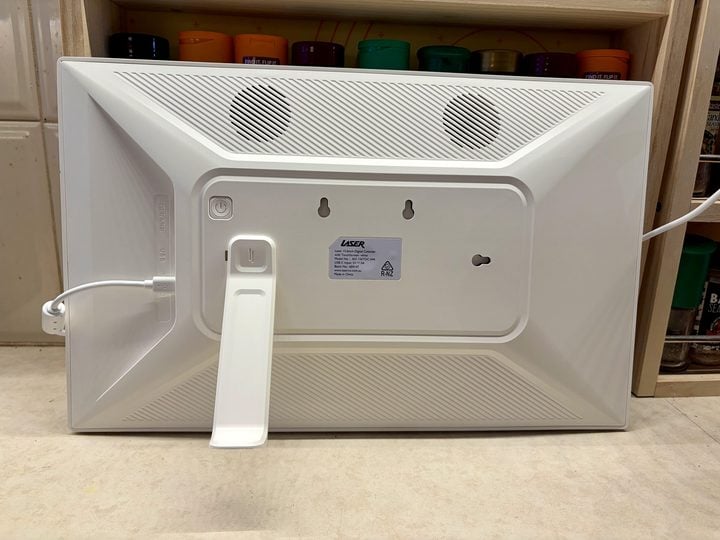
White plastic makes for a lightweight 1.13kg design, which shouldn’t be difficult to hang, although it’s a shame you can’t opt for a front frame that looks a bit more premium. It’s not as polished-looking as its rivals, which is forgivable because it’s considerably cheaper.
Where you place the Digital Calendar is limited by the fact it relies on a 1.5 metre power cable. If you want to hang it on a wall in a central location like the dining room, you might need to think about ways to hard-wire it.
That said, calendar items and other details would be difficult to read from across the room – you really need to be within one metre to see it clearly. You can increase the font size, but it barely makes a difference – making it bolder rather than larger.
As such, the kitchen bench or splashback might be a more practical place to install it. On the fridge would also be handy, but tricky to mount.
Determining the best place to install the Laser Digital Calendar is crucial. It’s only useful if you can convince everyone in your home to actually use it – which means it needs to be right there when they need it.
Interestingly, you can also protect it with a passcode if you don’t want to grant visitors unfettered access to your affairs.
Laser Digital Calendar specifications and price
| Display size | 15.6-inch |
| Display resolution | 1920 x 1080 pixels (Full HD) |
| Display technology | IPS touchscreen 250 cd/m² brightness 60 fps refresh rate |
| Speakers | 2 x 2W |
| Formats | JPG, JPEG, PNG images MP4, MKV, 3GP video |
| Connectivity | 802.11 b/g/n 2.4GHz only |
| Power | USB DC 5 V, 3 A adaptor supplied 1.5 metre cable |
| Dimensions | 39.2 x 24.5 x 3.5cm |
| Weight | 1.13kg |
| Price | $229.95 RRP |
| Warranty | 2 years |
| Official website | Laser Australia |
Features
Setting up the Laser Digital Calendar requires the free Whale Framely app (iOS/Android), which also lets you manage the device remotely. The good news is that it’s free and you don’t need to sign up for yet another subscription service.
You can give the Digital Calendar a name, specify a location and then invite members of your household to access it. Thankfully, not everyone needs the Whale Framely app; you can also create on-device profiles for those too young to own a smartphone.
Next, it’s easy to link to online calendars from Google, Apple, Microsoft, Yahoo! and others. You can specify whether each calendar is one-way or two-way sync. The latter allows you to create and edit calendar appointments on the Digital Calendar’s touchscreen, which will be synced back to the cloud.
The calendar view lets you switch between Schedule, Day, Week or Month view. Schedule’s seven-day view is hard to read at a distance, but you have the advantage of swipe-to-scroll and pinch-to-zoom. Day and Week views take advantage of the screen real estate to make appointments larger, while Month gets quite crowded.
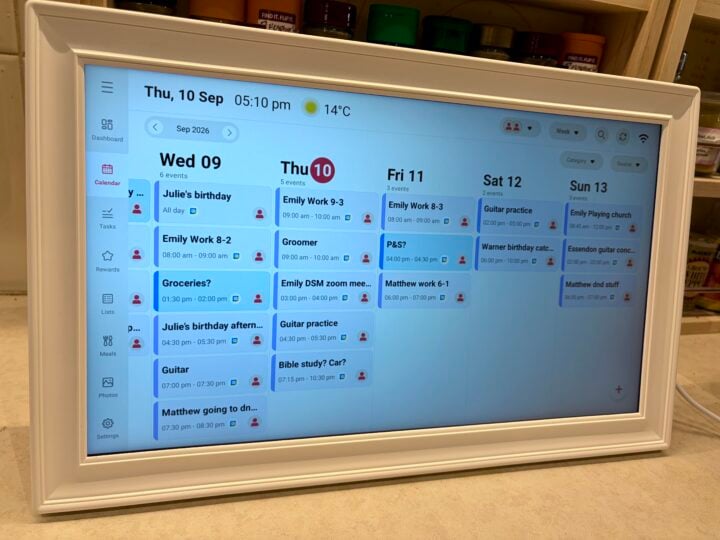
By default, the Digital Calendar pops up calendar appointments and chimes loudly, as does the Whale Framely smartphone app. This might suit some homes, but thankfully you can disable it if it seems like overkill.
It’s important to note that you can’t talk to the Laser Digital Calendar and it doesn’t have a built-in smart assistant, microphone or camera, so it’s not a full substitute for a Google or Amazon smart screen. Some homes will see that as a positive.
Organiser features
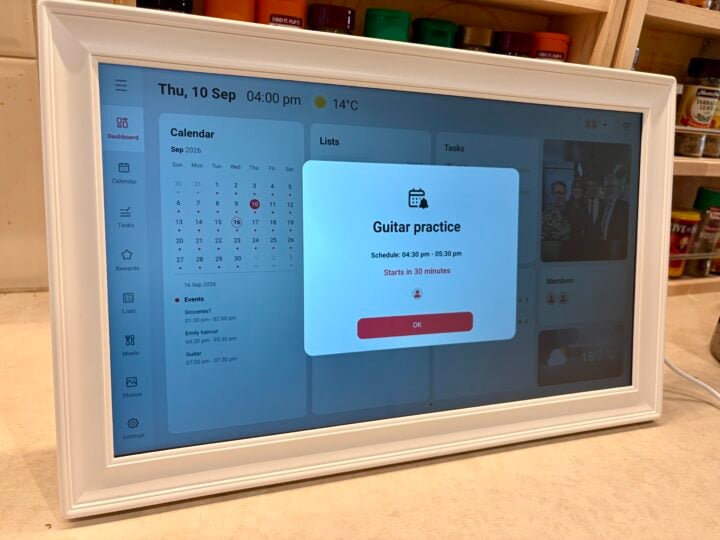
More than just displaying your digital calendars, Laser Digital Calendar also offers a range of extra features to keep your household organised: lists, tasks, a meal planner and even rewards – if that’s what it takes to get everyone in your household motivated.
The dashboard view shows you everything at a glance, along with the time, date, weather forecast and a photo from your library. A drop-down lets you add and remove information from different household members if you want to reduce the clutter.
You can rearrange the widgets and create up to five different dashboards. Unfortunately, the size of the widgets is locked, so it’s not as customisable as a smartphone.
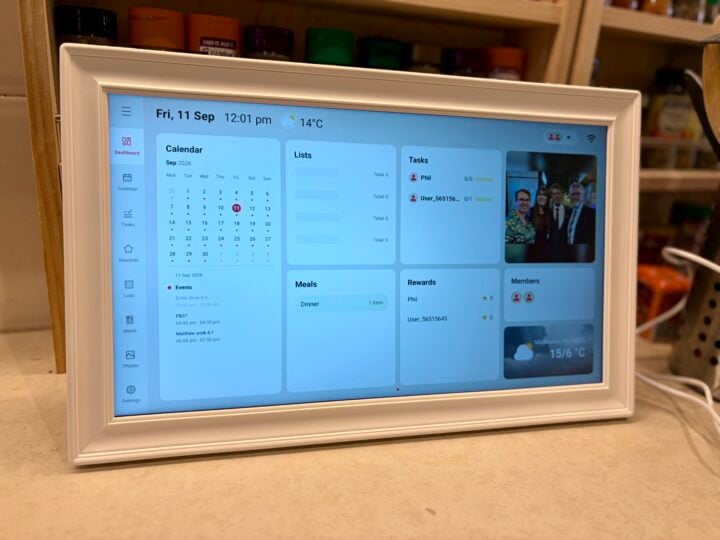
When you create tasks and lists, you can assign them to people, which is useful. The downside is that they’re standalone apps, so you can’t sync tasks and reminders from an online calendar.
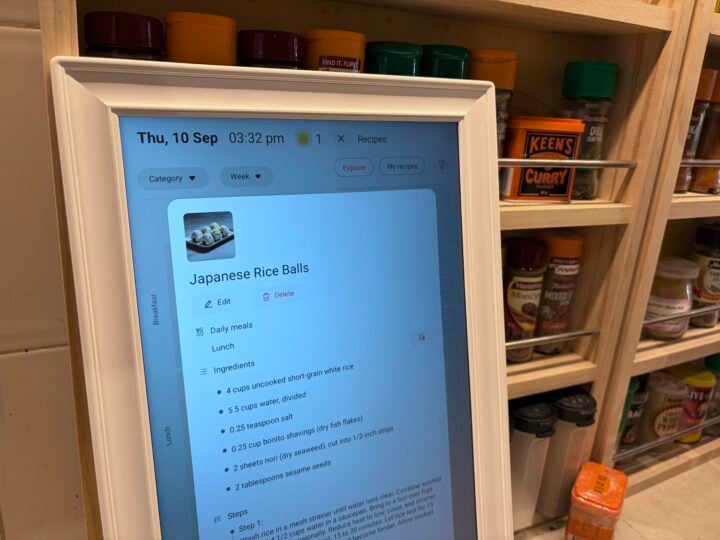
The meal planner is interesting, making it more tempting to place the Laser Digital Calendar within arm’s reach in the kitchen. You’d probably want it on the splashback or wall, as the viewing angles aren’t great when looking down at the screen.
You’re presented with a one- or five-day meal plan view, which you can tap to create a new item or add a meal from the built-in library. Some built-in meals include the recipe, but it talks in ounces, so be warned that other measurements like cups and tablespoons are most likely American rather than Australian (it sounds crazy, but they’re not the same).
Digital photo frame features
The Whale Framely app is required to add photos to the Laser Digital Calendar. You don’t have Skylight’s convenience of simply emailing photos, but you can add photos to someone else’s frame if you’ve added it to your Whale Framely app.
As with the Skylight ecosystem, you need to curate your photo library from scratch. You don’t have the flexibility to simply point it to an existing online photo library, as you can with Google and Amazon’s smart screens.
To help your shots look their best, you can crop photos in the app and add captions before sending them to the frame, or else adjust them after they arrive.
Within your Whale Framely photo library, you can set an album as a screensaver which kicks in between one and 10 minutes of inactivity. Of course, the downside is that you now can’t see any of your organiser details when you glance at the screen. Support for even basic voice commands, like “show me the calendar”, would be handy.
You can also manually start a slideshow by simply tapping on any photo you see on the screen. You can set the slideshow intervals anywhere from one second to 24 hours, then adjust how photos fill the screen and what’s in the background.
The limited transition options are basically three different swipes to the left. There’s no straight cross-fade, which some people prefer so they don’t constantly catch the motion out of the corner of their eye. That said, cross-fade is also lacking on the Skylight photo frame, and it stopped bothering me after a while.
Laser Digital Calendar also plays video clips and live photos, with the option to disable audio and auto-play if you don’t want the constant disruption.
Finally, you can also set a sleep schedule so the screen doesn’t waste energy overnight when no one is around to see it.
Quality
While the Laser Digital Calendar’s touchscreen is responsive, the onboard software can be a bit sluggish at times. When you switch between calendar views, it can take a while to populate.
Thankfully, the screen is bright enough to act as a decent photo frame, but the overall picture quality is a bit lacking if you have an eye for detail.
The matte display is very good at reducing glare, but the trade-off is that images aren’t as deep and vivid as what you’d get from the Skylight Calendar, or the standard Skylight dedicated digital photo frame. Likewise, it falls short of Google and Amazon smart screens.
That’s not to say it looks terrible, just that it’s not as good as its more expensive rivals. If you’re primarily after organiser features, you might not care.
On the plus side, the horizontal viewing angles – how far you can stand to the side before the picture looks overly washed out – are about on par with the standard Skylight. It looks pretty good until you get past 45 degrees.
The Skylight Calendar’s horizontal view angles are much narrower, so it looks terrible from much of the room. This is arguably a greater sin for a digital photo frame than lacking in overall picture quality.
Who is the Laser Digital Calendar for?
If you struggle to keep your busy household organised, then the Laser Digital Calendar might be exactly what you need. The fact it’s half the price of the Skylight Calendar, with almost identical features, makes it particularly attractive (keeping in mind the Skylight Calendar looks more premium).
Like its rivals, the Laser Digital Calendar is perhaps best-suited to households where kids are old enough to read the calendar but too young to have their own smartphone and use a shared family calendar.
It comes down to whether you have a good location to install it, how you would use it and if you can convince everyone in your home to actually take advantage of it. If you can sell everyone on the benefits, it might deliver household harmony.
The post Laser Digital Calendar review: Save the day appeared first on GadgetGuy.


0 comments:
Post a Comment